
Last updated September 16, 2026
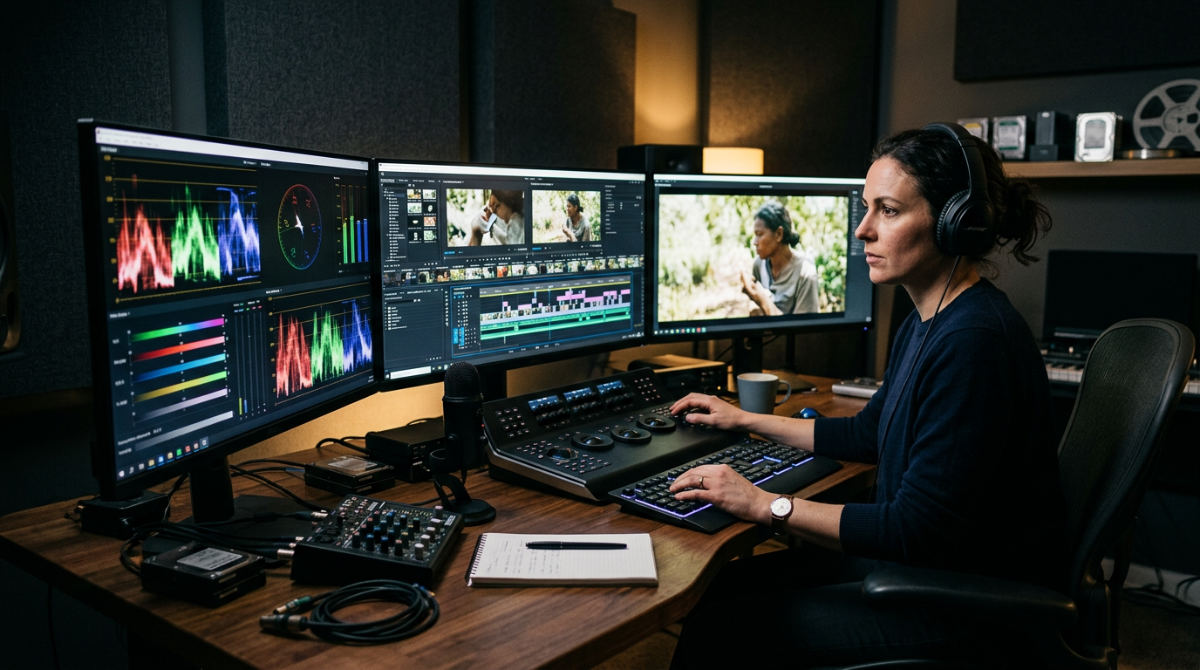
Video compression software is a specialized tool designed to reduce file sizes while maintaining visual fidelity for professional distribution. For high-stakes corporate and commercial content, software must balance bitrate efficiency with color accuracy. Precision matters. It ensures that digital containers like MP4 retain the crisp details of the original 4K master.
Key takeaways
- Bitrate settings directly dictate the balance between file size and visual fidelity in commercial delivery.
- HandBrake is the industry standard for open-source transcoding into modern codecs like x264.
- Browser-based tools like Rotato offer private, on-device compression essential for confidential corporate footage.
- Slower compression speeds generally yield smaller, higher-quality files compared to rapid hardware acceleration.
- Integration of compression into the final post-production workflow ensures technical delivery matches creative vision.
Why Compression is the Final Twist in Post-Production
At Pretzel Logic, compression isn’t a chore. It is the final twist in the storytelling process. A digital multimedia container like MP4 serves as the standard for web distribution. It offers high compatibility for marketing channels from San Diego to New York. Managing a massive portfolio requires a logical approach to data management. You can’t let storage concerns compromise the integrity of 4K footage.
Our professional post-production services prioritize the visual soul of the content during the final transcode. High-stakes corporate and legal clients require precision. Generic, automated tools often overlook the details. Technical logic should never stifle creative impact. Whether we produce content for a boutique in La Jolla or a global agency, the way a video is squeezed determines how the audience perceives the brand.
Prerequisites and Professional Compression Benchmarks
Professional compression requires a specific hardware environment to ensure data integrity.
- Estimated Time. 15–45 minutes depending on footage length and hardware speed.
- Cost. Prices range from free open-source tools to monthly professional suite subscriptions.
- Hardware. Dedicated GPU (NVIDIA/AMD) recommended for 4K local processing.
- Privacy. Browser-based tools must support on-device processing to protect sensitive assets.
- Software. Access to a reliable video transcoder such as HandBrake or a browser-based tool like Rotato.
| Feature | Open-Source (HandBrake) | Browser-Based (Rotato) | Pro Suites (Adobe) |
|---|---|---|---|
| Primary Use | Deep Technical Control | Speed & Privacy | Workflow Integration |
| Processing | Local CPU/GPU | On-Device (Browser) | Local / Cloud |
| Batching | Advanced Queueing | Single / Limited | Industry Standard |
| Cost | Free | Free/Paid Tiers | Subscription |
Comparing Professional Compression Tools
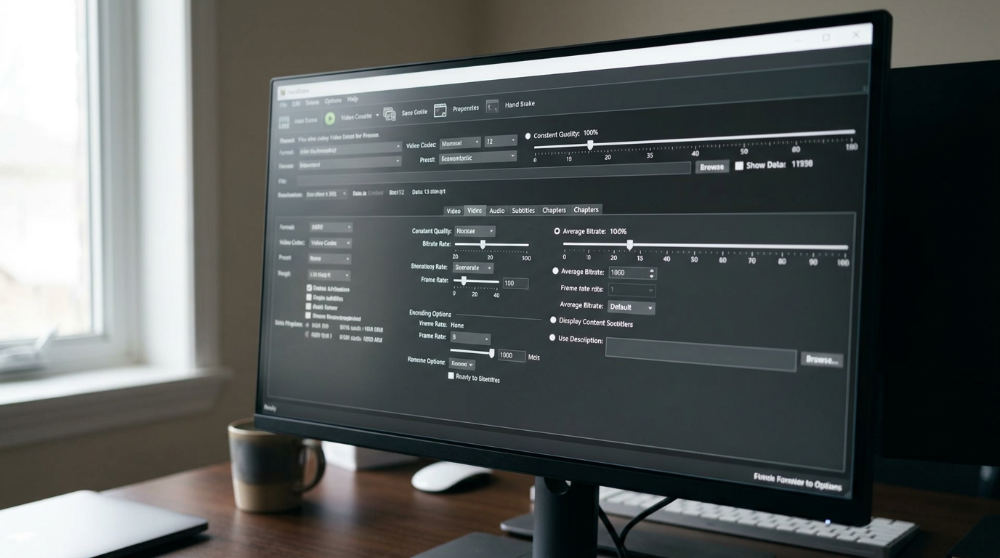
HandBrake is an open-source tool capable of converting video from nearly any format to modern, widely supported codecs according to its official documentation. Manual control is its greatest strength. You can tweak specific encoder levels and profiles. Conversely, browser-based compression tools like Rotato can process video on-device. Files aren’t uploaded to external servers, as noted by Rotato’s privacy features.
Local software often utilizes x264 (H.264), a codec that balances file size and visual fidelity. While browser tools work well for rapid social sharing, local hardware acceleration is superior for processing heavy 4K commercial masters. When we handle corporate video production, we rely on dedicated local workstations. No shortcuts. This ensures every frame renders with clinical accuracy.
1. Define your delivery requirements
First, identify if the video is for social media, a high-end corporate presentation, or a localized broadcast. Determine the target bitrate. Data processed per unit of time dictates video quality. Select the appropriate container (usually MP4) to ensure the file plays on any device. Don’t lose the creative vision. Choose a setting that respects the color grading from the edit phase. A 1080p Instagram reel requires a lower bitrate than a 4K keynote presentation.
2. Select your compression software
Choose HandBrake for manual overrides and x264 codec compression when you need absolute control. We prefer it for any project requiring specific grain retention or complex color profiles. Opt for a browser-based solution if you are on a machine without administrative rights or need a quick turnaround for a non-confidential clip. Ensure the software supports your source file format (AVI, MOV, or high-bitrate RAW wrappers). Verify that the software can handle batch processing. Doing so saves time when preparing an entire suite of assets for a brand launch.
3. Configure manual bitrate settings
Avoid "Auto" presets for high-stakes projects. They are lazy. Instead, manually set a target bitrate that matches the platform’s requirements. Use a two-pass encoding method if possible. This produces a more efficient file with better detail in complex scenes. Balance the speed slider (remember that higher compression speeds typically result in larger file sizes). Slower processing allows for deeper size reduction. Check that audio settings aren’t overly compressed. Clear sound is as vital as a crisp image. Utilizing slow or very slow presets for professional commercials can significantly reduce the final file size.
4. Verify color and contrast accuracy
Compare the compressed file side-by-side with the master. Look for "banding" in gradients or loss of shadow detail. Check that the color space remains consistent (Rec.709 for most web delivery) to prevent a washed-out look. If you are preparing professional headshots or brand elements, ensure skin tones remain natural. Adjust the x264 profile settings if you notice artifacts in dark areas. In our San Diego studio, we utilize calibrated monitors to ensure the compressed MP4 looks identical to the original master.
Common Mistakes in Video Compression

One frequent error is over-compressing footage until digital artifacts distract from the narrative. If the viewer notices blocks in the shadows, the logic of the story breaks. Another risk involves uploading sensitive corporate data to cloud-based compressors that lack on-device processing. This can lead to security vulnerabilities for legal or medical clients.
Ignore the "No Visible Quality Loss" myth. Every compression step involves a trade-off. You must decide where to sacrifice data to meet file size targets. Failing to account for how technical compression choices influence total video production costs is another oversight. Complex renders add hours to a timeline. Finally, using fast hardware encoding for final masters often results in less efficient compression than software-based x264 encoding. This leads to bloated files that might buffer on slow connections. For environments like Lightz Out Studios, preserving every detail of the lighting design is paramount.
Frequently asked questions
What is the best video compression software for web distribution?
HandBrake is the top open-source choice for deep technical control. Rotato is excellent for quick, private, browser-based compression. For editors in the Creative Cloud ecosystem, Adobe Media Encoder remains the standard for integration. Each tool serves a different tier of the workflow.
Can you compress video without losing quality?
Technically, no. Most web formats use lossy compression which discards data. However, professionals aim for "visually lossless" results where the human eye cannot detect the difference. Using higher bitrates and efficient codecs like x264 minimizes this perceived loss.
Is browser-based compression safe for confidential corporate footage?
It is only safe if the tool processes the video "on-device" without uploading it to an external server. Tools like Rotato offer this privacy by keeping your data local to your browser cache. Always verify a tool’s privacy policy before using it for legal or corporate content.
Why does my video file size increase after compression?
This happens if the target bitrate is set higher than the original file’s bitrate. Changing to a less efficient codec can also result in a larger file. To avoid this, ensure your output settings are optimized for the resolution and frame rate of your source footage.
Which codec is best for professional commercial distribution?
H.264 (x264) is currently the gold standard for compatibility. H.265 (HEVC) is the preferred choice for 4K and HDR content due to higher efficiency, though it requires more processing power. AV1 is an emerging open-source alternative gaining traction for high-end web streaming.
If the technical logic of bitrates and codecs feels daunting, let us handle the complexities. We bring your vision to life with a balance of creative flair and technical precision. Contact us at Pretzel Logic Productions, 5961 Kearny Villa Rd, San Diego, CA 92123, to collaborate on your next project.