
Last updated September 15, 2026
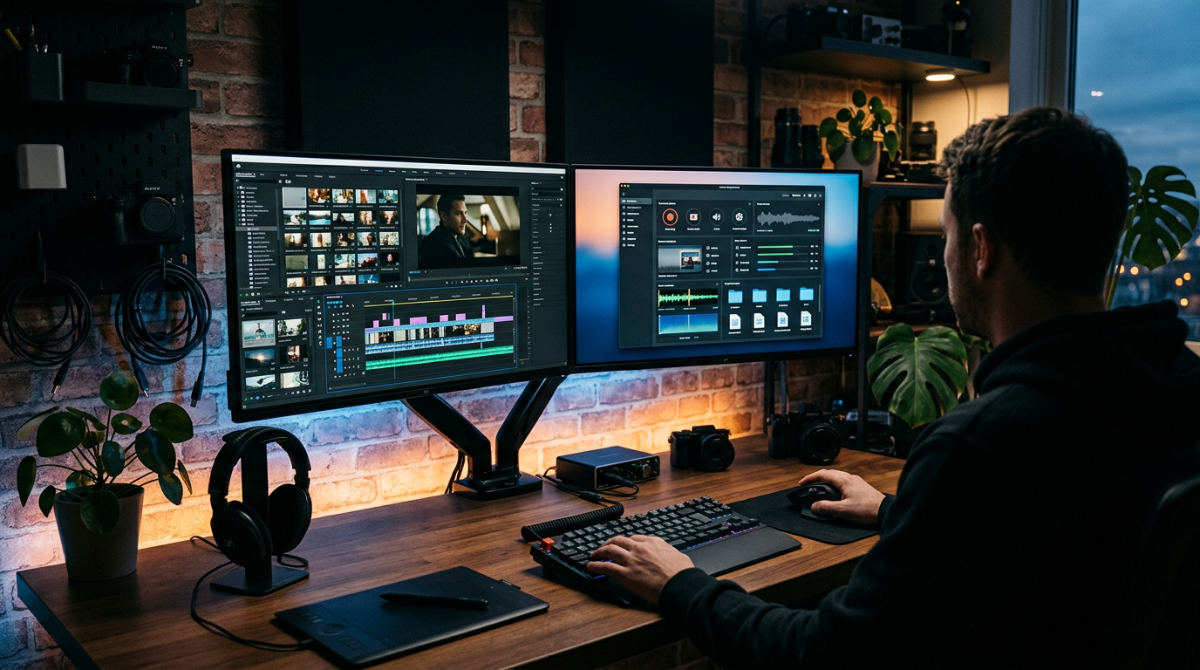
OBS screen recording software is an open-source tool for capturing high-definition video and audio. While widely used for streaming, professional production involves configuring the software for post-production editing, utilizing hardware encoders like NVENC, and recording in MKV format to ensure file integrity and multi-track audio control.
Key takeaways
- MKV format is essential. Recording in MKV is the only way to prevent file corruption during unexpected software crashes or power losses.
- NVENC hardware encoding. Utilizing NVIDIA’s dedicated hardware encoder significantly reduces CPU strain for high-motion 4K software demos.
- Logical Workflow approach. Prioritizing multi-track audio separation ensures total control during advanced post-production editing.
- Studio Mode control. This feature acts as a virtual control room, allowing you to preview scenes and sources before they are pushed to the live recording.
- Broadcast-quality audio. Integrating professional VST plugins directly into the software achieves superior vocal clarity and noise suppression.
Professional Standards for Open Source Capture
OBS Studio is the industry standard for creative control because it offers a level of modularity that proprietary, "one-click" tools simply cannot match. The initial learning curve feels steep. It really does. However, the ability to treat your screen as a cinematic stage separates a basic screencast from a high-end brand asset. At Pretzel Logic, we approach screen capture by transitioning from a "live" mindset to a pre-production mindset. We don’t just hit record. Instead, we build a visual environment where every element, from the resolution to the frame rate, is optimized for the highest possible fidelity.
The open-source nature of Open Broadcaster Software (OBS) allows for deep integration with professional motion graphics and third-party scripts. For a visual storyteller, this means you aren’t stuck with a grainy, compressed file that falls apart during color grading. You can capture near-lossless source material that serves as the foundation for a larger campaign. You might be building high-stakes software tutorials or internal executive communications. Whatever the project, the software provides the raw power needed to ensure the final product looks intentional and polished, rather than accidental.
High-quality encoding can place a significant burden on CPU resources without a dedicated hardware encoder. We always insist on specialized hardware offloading to maintain system stability during recording. Without this offloading, the host computer often drops frames. This results in jerky video that looks amateurish in a boardroom setting.
Configuring the Logical Production Environment
Creating a professional recording environment begins with customizing the "Dock" UI to eliminate distractions. By undocking and rearranging elements like the audio mixer and scene transitions, you can create a layout tailored to high-stakes recordings where a single misstep means a re-shoot. Our "Logical Workflow" treats the software interface as a mission control center rather than just a utility window.
Pro Tip: Enable Studio Mode to manipulate your sources and check alignments in the preview window without those adjustments appearing in the actual recording until you transition them.
Studio Mode is the most critical tool for corporate presentations. It allows you to adjust an overlay, fix a typo in a lower-third, or re-align a webcam feed in the preview pane while the recording continues uninterrupted on the "Program" side. For complex walkthroughs, the Multiview feature is useful for monitoring multiple scenes simultaneously. Using this ensures that when it is time to switch from a full-screen software demo to a "picture-in-picture" talking head, you know exactly what is coming next. At Pretzel Logic, we use these screen capture software strategies to maintain brand consistency. Every source is framed and captured with the same precision as a live-action shoot.
Optimizing Video Settings for High Resolution
To handle 4K screen recording for high-resolution displays, you must choose an encoder that balances visual quality with system performance. For users with NVIDIA graphics cards, the NVENC hardware encoder is the gold standard. I would never choose anything else if the option were available. It offloads the heavy lifting from the CPU to a dedicated chip on the GPU. This prevents "stuttering" in high-motion software demonstrations. By letting the hardware handle the encoding, the CPU remains free to run the software you are actually trying to record. If you are working on a laptop without a dedicated graphics card, the x264 encoder is your primary option, but it requires careful bitrate management to avoid overloading the processor.
When we handle specialized needs, such as hiring a corporate video production company for depositions or evidence capture, fidelity and reliability are non-negotiable. We typically recommend using a high bitrate to ensure that text remains crisp and visual clarity is maintained. Managing these hardware profiles is about finding the "sweet spot" where the recording is smooth, the colors are accurate, and the frame rate never drops below 60fps. Higher bitrates also prevent "blocking" artifacts when recording complex software user interfaces with many fine lines and small fonts.
Advanced Audio Routing and Sound Processing
To achieve professional audio results, you must separate your audio sources into discrete digital tracks using the advanced audio properties menu. This isolation allows you to record your microphone and desktop audio as two distinct signals. During the editing phase, this separation is vital. It lets you remove a coughing fit or a loud notification chime from the desktop track without affecting the primary vocal delivery. Most amateur setups fail because they flatten all audio into one track, leaving no room for correction.
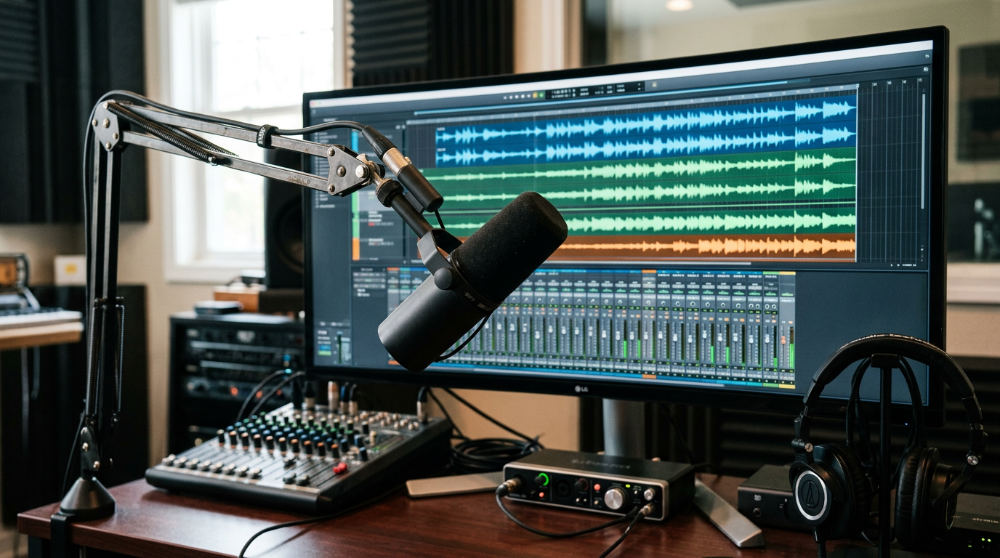
The software also supports per-source filters that allow you to build a broadcast-ready soundscape in real-time. You can apply noise gates to silence background hum, and integrate VST plugins like professional-grade EQ and compression to give your voice that "radio" presence.
- Noise Suppression. Eliminates consistent background noise like fan whirring or air conditioning.
- Compressor. Levels out your volume so you don’t peak when you get excited.
- Limiter. Acts as a safety net to prevent digital clipping and distortion.
- VST 2.x Plugins. Allows you to use high-end audio tools from external developers directly inside the mixer.
A proper setup ensures that internal audio is captured cleanly, without system notifications or Slack pings disrupting the vocal take. Beyond the basics, advanced users often route their audio through virtual cables. Doing this allows for even deeper control, separating VoIP calls from music and game sounds. When we produce high-end content, we ensure that every breath and nuance is captured without the muddy quality found in standard web-conferencing tools.
The Remuxing Workflow for File Security
Recording in MKV format is the safest professional choice because it saves the video data in a way that remains recoverable even if your computer crashes. Unlike MP4 files, which require a "clean" closure at the end of the recording to finalize the file header, MKV is a container that writes data incrementally. If the power cuts out 59 minutes into an hour-long session, an MP4 file will often be completely unreadable. It becomes junk. An MKV file will be perfectly intact up to the last second recorded.
Practical Rule: Always record in MKV format and use the auto-remux feature to convert to MP4; this ensures your video is saved even if your computer loses power during a session.
The technical process of remuxing is the final step in this secure workflow. Since many professional editing suites prefer MP4 or MOV containers, OBS includes a built-in tool that changes the "wrapper" of the file without re-encoding the video. The quality remains identical, but the file becomes universally compatible. We rely on this secure approach when handling sensitive data for legal evidence or executive communications, where losing a single frame of a one-time event is not an option. It takes only seconds to perform the conversion, but it saves hours of potential re-recording time.
When Raw Capture Falls Short
While OBS is a powerhouse, a standard screen recording is often not enough for high-level brand storytelling. There are inherent limitations to what raw capture can achieve, particularly regarding complex character animation or heavy 3D rendering. If your goal is to explain a complex abstract concept, a screen recording of a slide deck might feel flat. We view raw capture as merely the "pre-production" phase of a larger project. The recording is the raw ingredient, not the finished meal.
Over-complicating the interface without a dedicated production partner can also lead to technical debt. If you are managing multiple scenes, audio offsets, and hardware encoders while trying to deliver a high-energy presentation, the quality of your performance often suffers. You might stumble. If you find yourself needing more than just a recording of a window, perhaps a fully stylized world that reflects your brand’s identity, it may be time to look toward professional video production where the technical overhead is handled by experts. Professional teams can handle the lighting, the green screen keying, and the real-time composting while you focus on your message.
From Capture to Final Cut
To move from a raw capture to a polished final cut, you must treat the OBS output as source material that requires careful assembly in an NLE (Non-Linear Editor). This transition is where the logical workflow pays off. Because you recorded multi-track audio and used a high-bitrate encoder, the editor has maximum flexibility. They can zoom into specific UI elements without the video becoming pixelated or adjust the volume of the background music without burying the narrator’s voice. This is the difference between a video that looks like a recorded meeting and one that looks like a bespoke production.
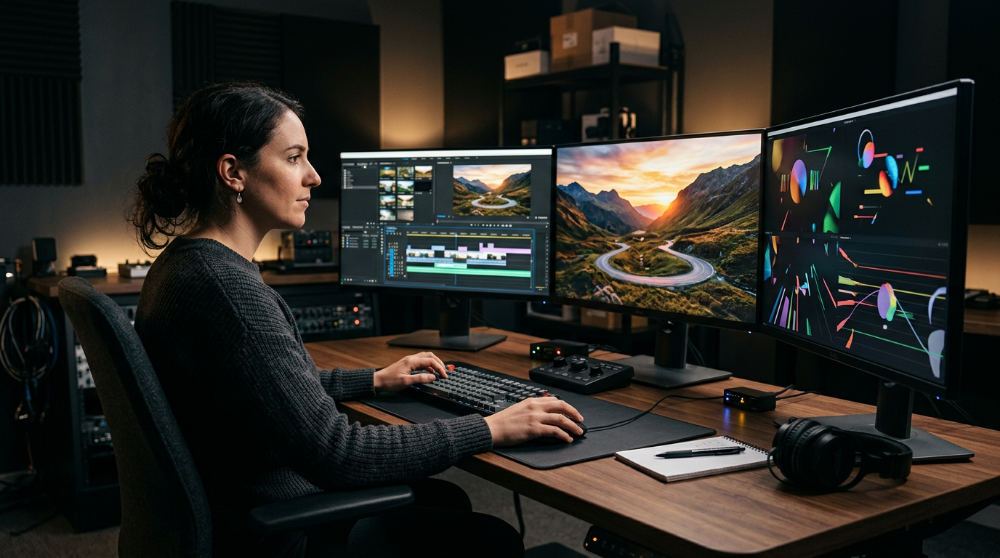
Integrating OBS captures into a professional post-production pipeline is how you achieve a truly premium look. At Pretzel Logic, we take those raw captures and add "the twist" by integrating post-production editing services to elevate the material. We can take a standard software walkthrough and overlay high-end animations that highlight key features, or use color grading to make a simple desktop capture feel like a cinematic experience.
Moving beyond the screen involves building a complete visual campaign where the recording is just one part of the narrative. By leveraging these tools correctly, you move from "making a video" to creating a professional asset that resonates with modern audiences. Whether you need to revitalize existing footage or start a new project from scratch, the goal is to transform technical data into a compelling human story. Modern audiences have a high bar for visual quality, and using professional techniques ensures your message isn’t lost in a sea of low-quality captures.
If you’re ready to take your brand’s visual content to the next level with professional execution, contact us to see how we can bring your creative vision to life with a twist.
FAQ
Is OBS screen recording software free for commercial use?
Yes, it is released under the GNU General Public License v2.0, making it free to use for any personal or commercial project.
How do I stop my recordings from being blurry?
Increase your bitrate and ensure your "Output Resolution" matches your "Base Canvas Resolution." Also, ensure you are using the NVENC hardware encoder if available.
Why is my audio out of sync with my video?
This usually occurs when the sample rates of your audio devices (e.g., 44.1kHz vs 48kHz) do not match the software settings. Ensure all hardware and software are set to the same sample rate.
Can I record and stream at the same time?
Yes, the software allows for simultaneous streaming and recording, provided your hardware (CPU/GPU) can handle the combined processing load.