
Last updated November 10, 2026
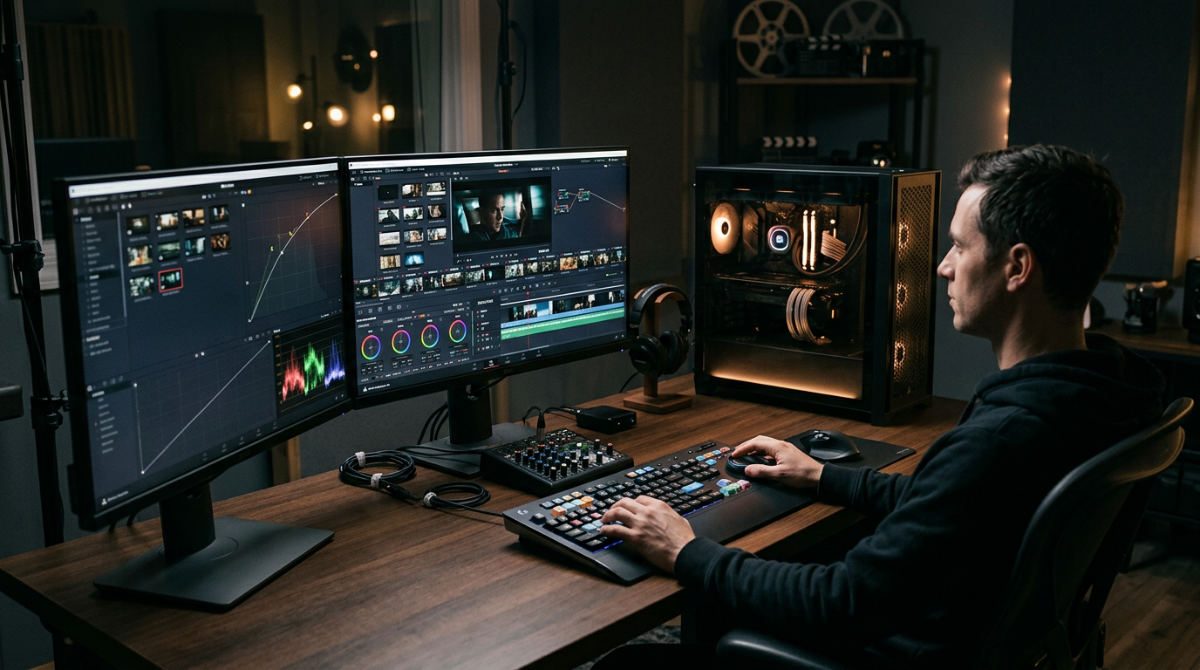
DaVinci Resolve system requirements for modern workflows generally involve a balance of high-speed RAM, a dedicated GPU with sufficient VRAM, and a multi-core processor. For professional high-resolution workflows, higher capacities of RAM and NVIDIA RTX GPUs with significant VRAM are recommended to ensure smooth playback.
Key takeaways
- Memory Baseline. Minimum requirements for HD editing typically start at 16GB RAM and a dedicated GPU.
- VFX Demands. Fusion visual effects and AI-driven tasks require substantial amounts of system RAM for stable performance.
- GPU Architecture. NVIDIA RTX GPUs are preferred for their CUDA cores, significantly accelerating color grading and rendering.
- Software Differences. The DaVinci Resolve free version has specific output limitations and differences in hardware acceleration support on Windows compared to the Studio version.
Essential Hardware for Modern Video Production
Running DaVinci Resolve 18 efficiently requires a shift from CPU-heavy thinking to a GPU-centric workstation build. Legacy editing software often relies on the processor to do the heavy lifting. Blackmagic Design changed the game. They engineered Resolve to offload image processing to the graphics card. Your choice of GPU dictates your future. You will either have a fluid creative experience or a frustrating afternoon of stuttering playback. Choose wisely.
| Component | Minimum (1080p) | Recommended (4K/Fusion) |
|---|---|---|
| OS | Win 10 / macOS 12 | Win 11 / macOS 14 |
| RAM | 16GB | 32GB – 64GB |
| GPU VRAM | 4GB Dedicated | 8GB – 12GB+ (NVIDIA RTX) |
| Storage | SSD | NVMe M.2 SSD |
| CPU | 4-Core i5/Ryzen 5 | 8-Core+ i7/Ryzen 7 |
The software is incredibly scalable. Professional storytelling, however, needs hardware that won’t lag during client review sessions. At Pretzel Logic, we utilize the Logical Workflow. This approach balances high-level creative concepts with rigorous technical standards. We make sure our hardware exceeds the baseline. This prevents technical friction from interrupting the storytelling process.
Windows users need at least 16GB of system memory for Resolve 18. We recommend 32GB when using Fusion VRLA Tech. If you are working on a laptop, do not rely on the processor’s internal graphics. Integrated graphics are generally insufficient. A dedicated GPU with 4GB of VRAM is the bare floor for 1080p projects. When building a professional video editing workstation, prioritize the GPU and RAM above all else. This is non-negotiable.
Do you work with brands across the country?
Yes, Pretzel Logic Productions serves corporate and commercial clients nationwide, providing end-to-end production regardless of location. We manage projects for a diverse range of industries, ensuring that distance never compromises the quality of the final deliverable.
Our technical infrastructure handles high-speed remote collaboration. We manage massive high-resolution raw files for brands from San Diego to New York. Cloud-based project management and high-bitrate review links keep the Logical Workflow uninterrupted by geography. A law firm in the Midwest receives the same high-touch service as a corporate brand on the East Coast. We treat every client like a local partner. Our specialized post-production services handle the heavy lifting of modern hardware requirements so you can focus on your vision.
What are the DaVinci Resolve free limitations?
The DaVinci Resolve free version is a powerful entry point. It still has specific functional caps compared to the Studio version. A significant restriction involves how the free version handles hardware acceleration for certain codecs on Windows. This leads to slower timeline performance on consumer-grade machines. It can feel like walking through mud.
The free version has specific limitations regarding hardware encoding on Windows and project resolution ceilings. It excludes certain Neural Engine AI tools and professional effects. High-resolution delivery usually requires the Studio version. DaVinci Resolve Studio unlocks full GPU acceleration. It allows multiple GPUs to work in tandem for faster exports. AI-driven features like Magic Mask, Face Refinement, and Speed Warp are exclusive to the Studio version. These tools require significant VRAM to operate. You can find a deeper breakdown of the limitations in the free edition to see if your project requires the upgrade.
Optimizing GPU and VRAM for 4K and AI Workflows
For demanding workflows, a dedicated GPU with high VRAM capacity is recommended for stable performance with Resolve’s Neural Engine. Hardware like NVIDIA RTX cards provides the necessary CUDA cores to accelerate complex color grading and noise reduction.
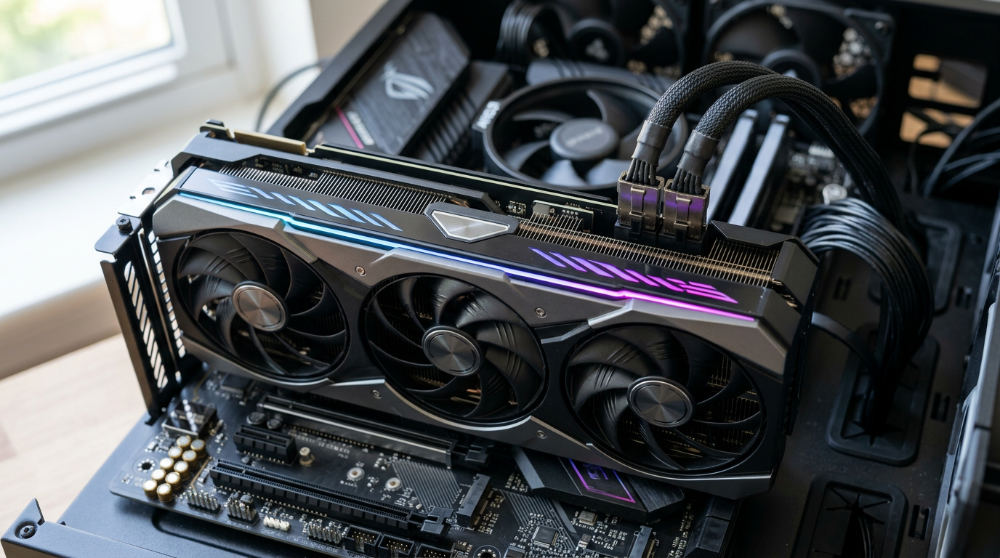
GPU selection is the most critical decision for Resolve users. The software relies on the graphics card for real-time image processing. When you apply a color grade, the GPU does the math. The same goes for noise reduction or OpenFX transitions. If you run out of Video RAM (VRAM), the software will often trigger an "out of memory" error. It might simply crash during render. That is a disaster.
Professional clinics that offer this type of production often utilize NVIDIA RTX cards with high VRAM counts. For AI video production and high-end motion graphics, it is standard to target GPUs with generous VRAM. This handles the Neural Engine’s intensive calculations. This is vital when we execute "The Twist." These are the visionary motion graphics and AI-enhanced visuals that define our style. These often require deep learning models to process frames in real-time.
A high-performance GPU ensures these complex elements render without crashing. If you edit high-resolution video with insufficient RAM, you will likely experience significant lag. In a professional environment, we cannot afford those delays. We maintain advanced hardware to keep the technology invisible. This leaves room for the creative soul of the project to shine.
RAM and Storage Needs for Fusion and VFX
Fusion and VFX tasks require substantial RAM for compositing. We recommend higher amounts for high-resolution frame sequences. Using high-speed NVMe SSD storage is also beneficial to maintain data throughput for complex visual effects timelines.
Fusion is a resource-hungry beast. It consumes available system memory for cached previews. The Edit page streams video from your drive. Fusion, however, loads frame sequences into RAM. This allows smooth playback of composited elements. If you plan on doing serious visual effects work, system memory is your primary bottleneck.
Basic cuts require less RAM. Higher capacities are the standard for commercial-grade motion graphics and complex compositing. AI-integrated animation is now a standard part of the creative process. Hardware demands continue to rise. Storage speed is as vital as capacity. NVMe SSDs help maintain the read speeds necessary for high-bitrate RAW footage playback.
Reliable hardware supports the creation of complex content assets. It prevents technical bottlenecks from slowing down the production pipeline. When we produce high-volume content, our storage arrays must be fast. They must handle multiple editors accessing the same footage simultaneously. For brands looking to scale their digital presence, partnering with a firm that understands these technical nuances is essential. If your marketing strategy includes high-impact social media presence, you might also consider how influencer marketing through specialized agencies like InnoVision Marketing Group can amplify the high-end video content we produce.
Step-by-Step Hardware Validation
To validate your hardware, verify your OS version, check for sufficient system RAM, identify your GPU VRAM, and benchmark your storage read speeds. Updating to the latest NVIDIA Studio drivers and configuring memory preferences within the software ensures the application utilizes available resources.
1. Verify your operating system version
Check that you are running at least Windows 10 Creators Update or macOS 12 Monterey. Ensure your specific distribution is supported if using Linux. Using an outdated OS can lead to library conflicts. This prevents the software from launching or causes erratic behavior during exports.
2. Check your total system RAM in Task Manager or System Settings
Open your system monitor. Ensure you have enough physical RAM installed. If you see low amounts of RAM, upgrade your memory modules before attempting to install Resolve. For high-resolution workflows, verify that your motherboard can support an upgrade if you experience performance dips.
3. Identify your GPU model and dedicated VRAM capacity
Navigate to display settings or use a system utility to confirm VRAM. You need sufficient VRAM for high-resolution projects. If your system relies solely on integrated graphics, performance will be severely limited. It will not work for professional use.
4. Benchmark your storage drive read and write speeds
Use a utility like Blackmagic Disk Speed Test to measure drive performance. High read speeds are necessary for smooth high-resolution playback. If your drive scores poorly, move your project files and cache to a high-speed external or internal SSD.
5. Test your CPU core count for multi-threaded background tasks
The GPU handles the pixels. The CPU handles file decompression and operating system tasks. A modern multi-core processor is a standard baseline. Higher core counts help with background tasks like generating optimized media or proxy files.
6. Update to the latest Studio Drivers for your specific graphics card
Download the NVIDIA Studio Drivers. Do not use the Game Ready version. Studio drivers are specifically tested for stability in creative applications like Resolve. This single step often resolves many of the initialization errors users encounter.
7. Configure Resolve memory and GPU preferences in the software menu
Go to Preferences, then System, and finally Memory and GPU. Ensure "GPU Selection" is set correctly or manually select your dedicated card. Move the "Memory Configuration" slider to the maximum allowed limit. This tells the software to claim as much of your hardware’s power as possible.
Avoiding Common Hardware Configuration Mistakes
Relying on Game Ready drivers instead of Studio drivers often leads to stability issues during long render queues. Gamers need the latest optimizations for new releases. Editors need a driver that won’t crash when rendering a long timeline. We always opt for the Studio certification. It protects our production schedule.
Neglecting the cooling system can cause thermal throttling. This is the primary cause of sudden frame drops in the middle of a project. Video rendering is one of the most heat-intensive tasks a computer can perform. If your laptop or desktop fans are clogged or insufficient, the hardware will intentionally slow itself down. This prevents damage but destroys your playback performance in the process.
Assuming that more CPU cores can compensate for a weak GPU is a common misconception. Even with a high-core processor, insufficient VRAM will cause struggles with basic color grading. Finally, failing to account for software limits when planning a high-resolution delivery can stall a professional project at the final stage. Always verify that your hardware and software versions align with your delivery goals before you start the first edit.
At Pretzel Logic, we treat these technical requirements as the baseline we exceed. This allows us to deliver visionary results for our clients. Our infrastructure is built to handle the most demanding high-resolution and AI workflows. Your story should be told without compromise. If you are ready to bring your creative vision to life with a team that understands both the art and the engine, please fill out the form to start a consultation.